TaxAITaxAI

What is TaxAI

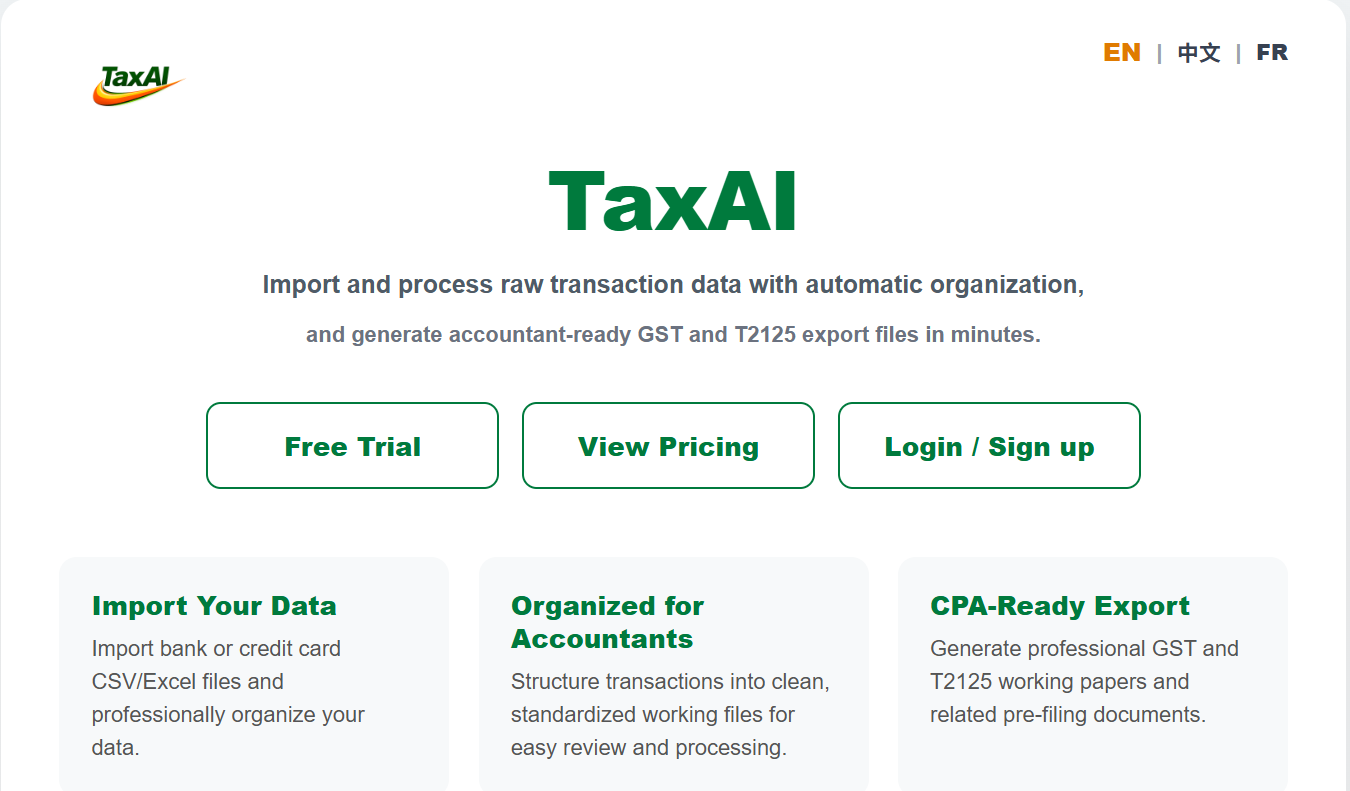
TaxAI is a smart tax data organization tool that helps users quickly organize pre-filing data. It turns scattered, messy data into cleaner, more structured working materials.

βš™οΈ

What it solves

Messy pre-filing data, inconsistent formats, and time-consuming manual organization. TaxAI helps you summarize, organize, and process faster.

πŸ‘₯

Who it’s for

Self-employed individuals, small business operators, and accountants preparing client tax materials.

πŸ‡¨πŸ‡¦

Supported regions

TaxAI currently supports Canadian regions listed in the Setup page. If your region is not listed, some features may not apply.

TaxAI Workflow Overview

Click + to explore each step in detail

β†’
Register / Login+
βš™
Setup+
↑
Input+
⊞
Data+
⊿
Analysis+
β˜†
Points & Referral+
1
Register / Login
Sign up, verify email, choose a plan, and log in.
  • Tap Register
  • Enter valid email & details
  • Email verification (6-digit code)
  • Log in
  • Choose a plan
  • Complete payment
2
Setup
Add clients, select identity, enter business info.
  • Enter client list
  • Save
  • Select client
  • Select identity menu
  • Enter basic info
  • Enter upstream info
  • Enter downstream info
  • Save
3
Input Data
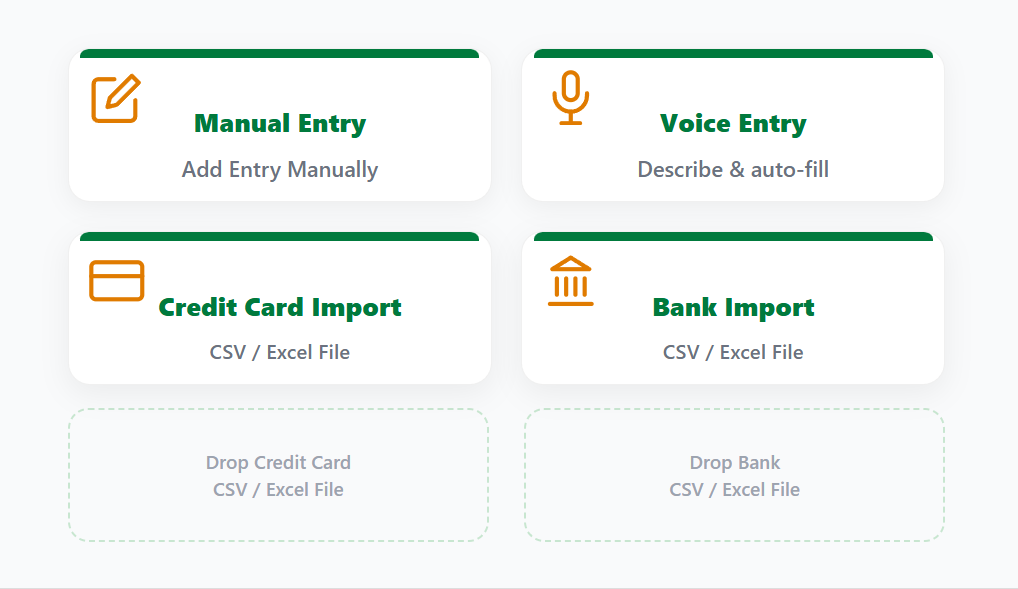
Four input methods available.
  • Manual Entry β€” fill transaction details, optional photo receipt
  • Voice Entry β€” dictate transaction, system auto-fills
  • Bank Import β€” import bank CSV/Excel, match columns, generate TA file
  • Credit Card Import β€” import credit card CSV/Excel, match columns, generate TA file
4
Organize & Export
System organizes data into working papers.
  • Data summary (credit card + bank)
  • Generate working papers
  • Organize working papers
  • Export T2125 / GST reports
5
Analysis
Review AI-assisted classification results.
  • Review classification results
  • Confirm or adjust categories
  • Finalize all entries
6
Points & Referral
Earn rewards by referring others.
  • Share your referral code
  • Earn points when others subscribe
  • Redeem rewards
πŸ“

Setup your business profile

Enter your business details, tax information, and industry context. The more complete your profile, the better the AI classification accuracy across all your transactions.
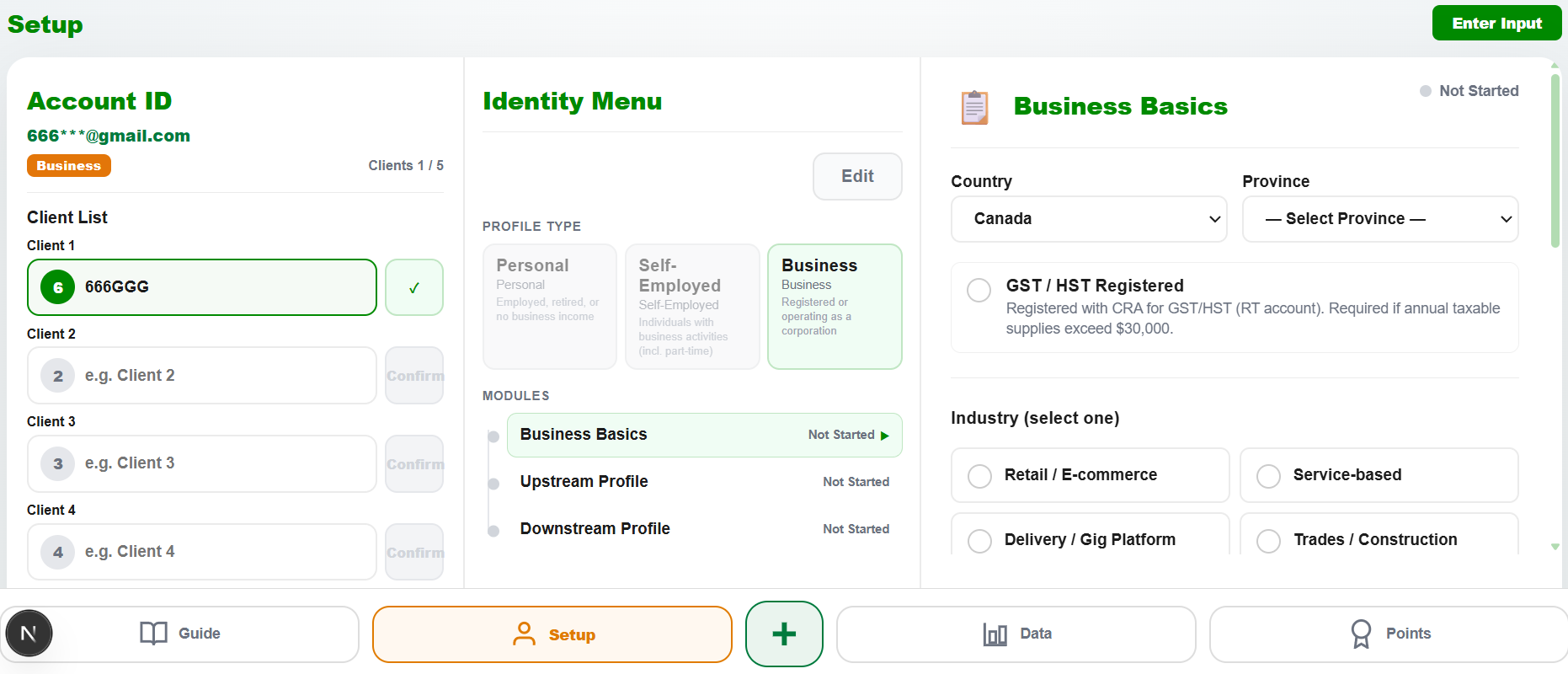
Business setup profile

Step-by-step workflow

TaxAI registration and login
πŸ”‘

Step 1 β€” Register & Login

  • Choose a plan and complete your subscription via Stripe.
  • Use the same email address for payment and account registration β€” this email is used to identify your account.
  • After logging in, follow the on-screen flow to begin Setup, Input, and Data processing.
Business setup and profile configuration
βš™οΈ

Step 2 β€” Setup

  • Enter the client name or alias for the current tax filing period and confirm. Once confirmed, the name cannot be changed.
  • Select the client identity type (personal, self-employed, or business) based on your plan.
  • Fill in the business details, upstream/downstream names, and tax information as completely as possible β€” the more detail, the better the classification accuracy.
Import transaction data
πŸ“₯

Step 3 β€” Data Import (Input)

  • Before importing, confirm the file content matches the current client shown in the top-right corner.
  • Bank Import β€” select your bank CSV/Excel file and follow the column-matching prompts carefully.
  • Credit Card Import β€” select your credit card CSV/Excel file and complete column matching.
  • Manual Entry β€” for daily additions, loose receipts, or data that cannot be imported directly. Photos of receipts can be uploaded from your phone.
  • Multiple files of the same structure can be imported together, but do not mix different banks or different account types in one import.
Data processing workspace
πŸ”

Step 4 β€” Data Processing (Data)

  • The Data page only accepts standard result files generated by TaxAI (filenames with TA prefix).
  • Consolidate files by type and tax period β€” for example, import all 12 months of credit card files at once.
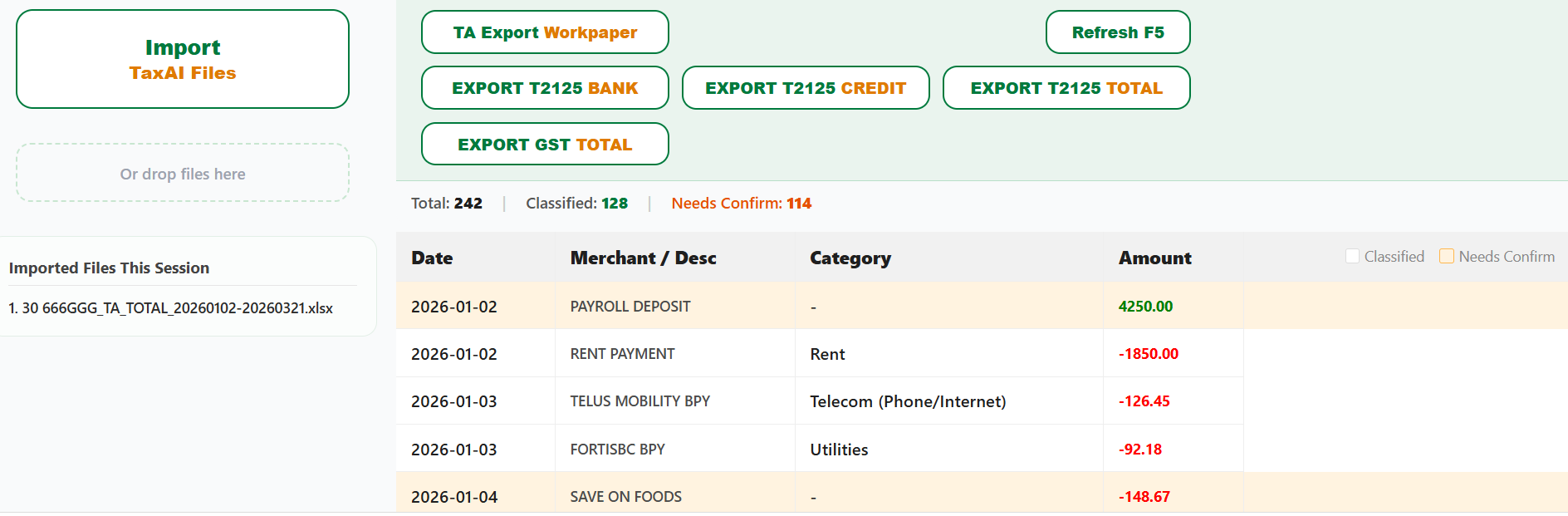
  • The system applies internal logic and AI rules for initial classification. Review the output, use sorting to group similar items, remove entries that should not be included, and confirm or adjust categories using the dropdown options.
  • This step may require some professional knowledge. Regular users may consider handing the file to an accountant at this stage.
Data processing workspace
πŸ”

Review & classify with AI

The Data workspace combines AI-suggested categories with your manual review. Sort, filter, confirm or adjust classifications β€” then generate GST and T2125 working papers when ready.
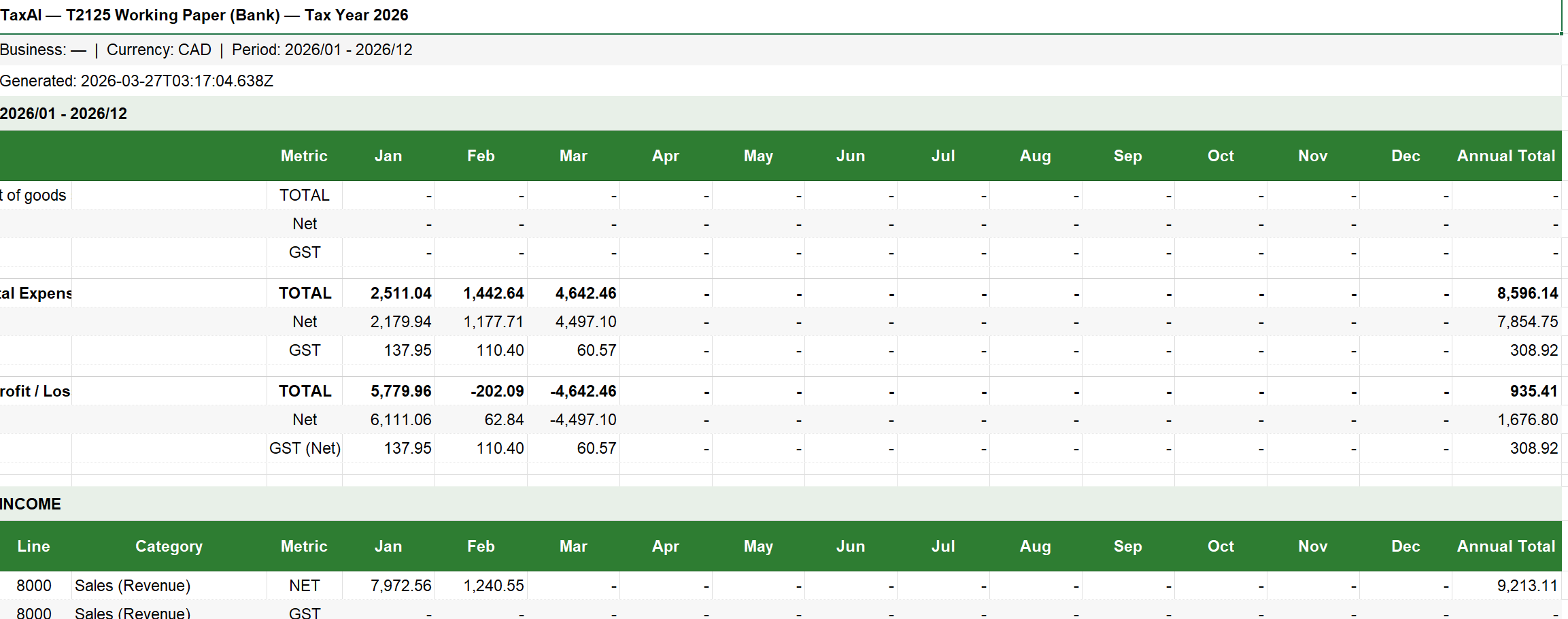
T2125 working paper output
πŸ“‹

Step 5 β€” GST & T2125 Generation

  • After completing data organization, re-import the finalized file into the system.
  • Click the corresponding buttons to generate GST summary and T2125 working paper outputs for pre-filing use.
Analysis dashboard with charts and summaries
πŸ“Š

Step 6 β€” Analysis

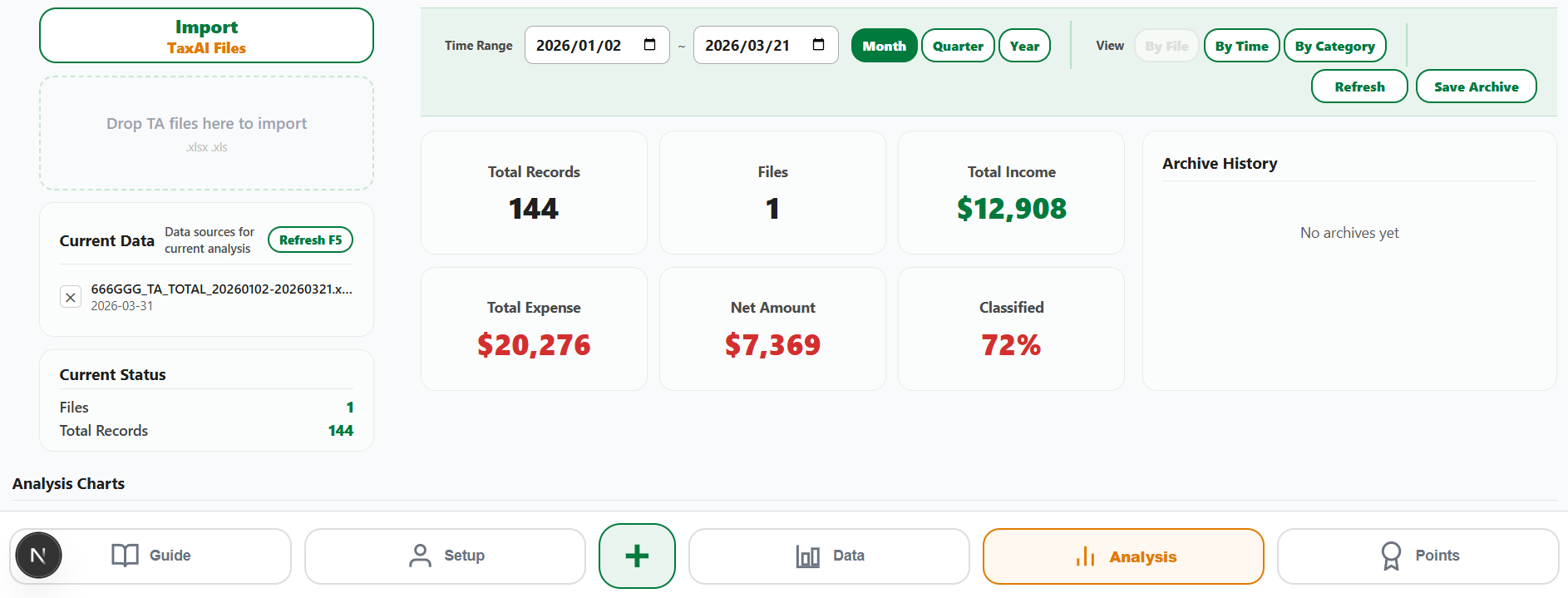
  • After importing and classifying your data, switch to the Analysis tab to see a real-time financial dashboard β€” total income, total expenses, net amount, and classification progress.
  • Use date range filters and switch between monthly, quarterly, or yearly views to explore spending trends and category breakdowns.
  • Save snapshots of your current data as historical archives, and compare them over time to track changes in income, expenses, and classification completeness.
Points and referrals dashboard
β–Ά
Video coming soon
🎁

Step 7 β€” Points & Referrals

  • Earn points after each payment, redeemable for future billing credits or platform benefits.
  • Refer others to earn referral points. Accountants who refer clients receive higher referral rewards.
  • The platform may also recommend qualified accountants with contact details for users who need professional help.
❔

Common questions

Quick answers to help you get started with TaxAI.

πŸ’¬

Need help?

For support, contact the TaxAI team at admin@taxaiapp.com

Mon–Fri, 9 am–5 pm PT